Seam
A Mac menu bar app for two everyday chores. Drag files from Finder to its icon and drop them into the right folder. Drag a window and it snaps to a screen edge, to another window, or into a grid you drew. It sells directly for $9.99 after a 14-day trial.
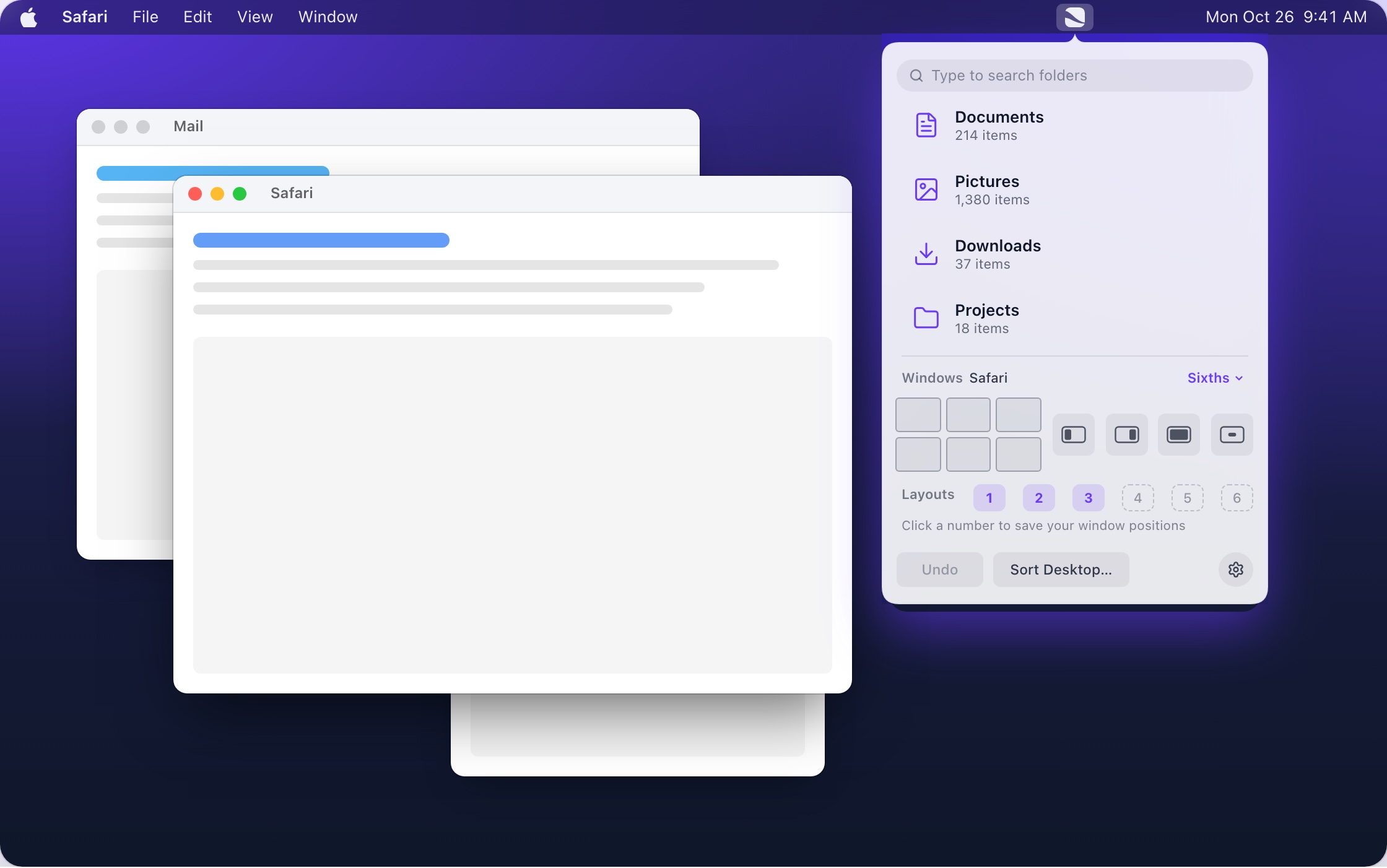
Two small chores, one icon in the menu bar
Files pile up on my Desktop and in Downloads, and windows end up stacked on top of each other. Filing one file means opening a Finder window, finding the folder and dragging the file across. Putting windows back means dragging and resizing each one by hand. Neither job is hard. I just do them dozens of times a day.
Seam puts both jobs under one icon in the menu bar. It runs in the background, and its drop-down opens when you click the icon or drag a file onto it.
The pictures on this page come from seamformac.com, which draws Seam’s drop-down and windows at the app’s own sizes.
Your rules point each file at its folder
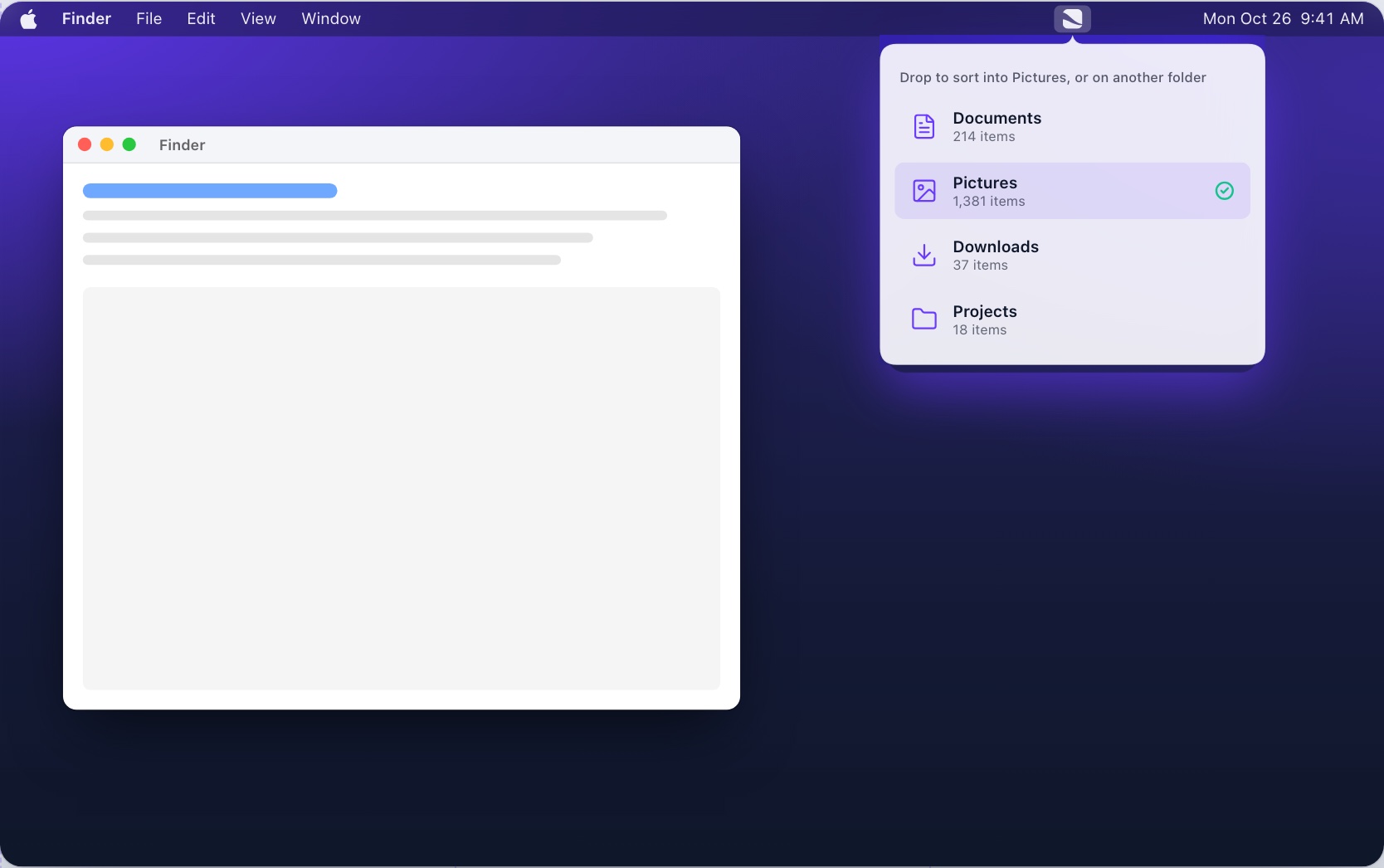
You drag files from Finder to Seam’s icon. A small callout opens under the icon, and after a moment it grows into the drop-down with your folders. Your rules mark the likely folder, for example screenshots to Pictures and videos to Movies. Drop on the callout and the files go to that folder. Drop on any row and they go there instead.
The callout only appears while a Finder drag is under way, so the menu bar looks the same the rest of the time.
Windows snap to edges, to each other, and to grids you draw
Recent versions of macOS tile windows into halves and quarters. Seam adds snapping between windows, grids you build yourself, and keyboard shortcuts.
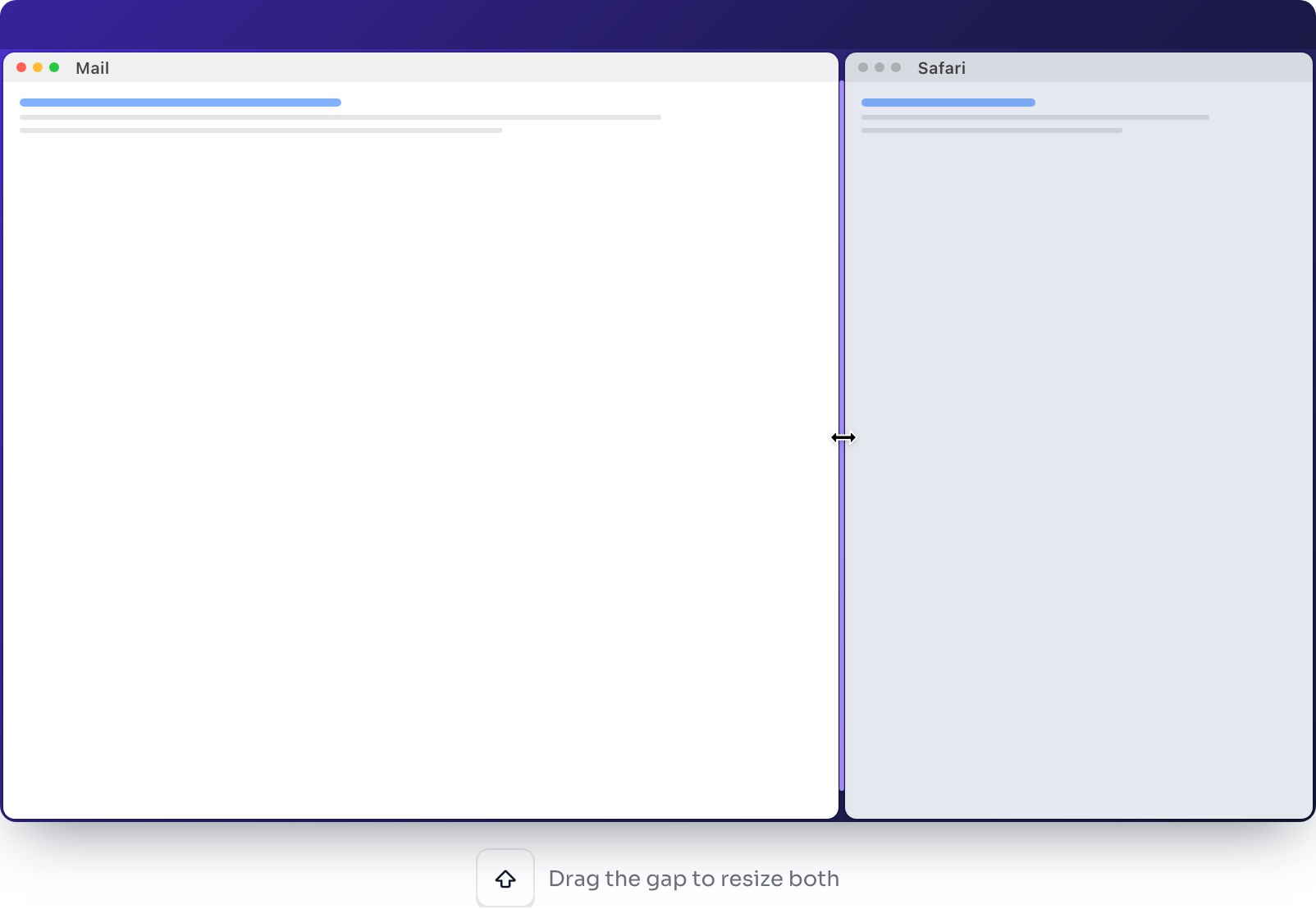
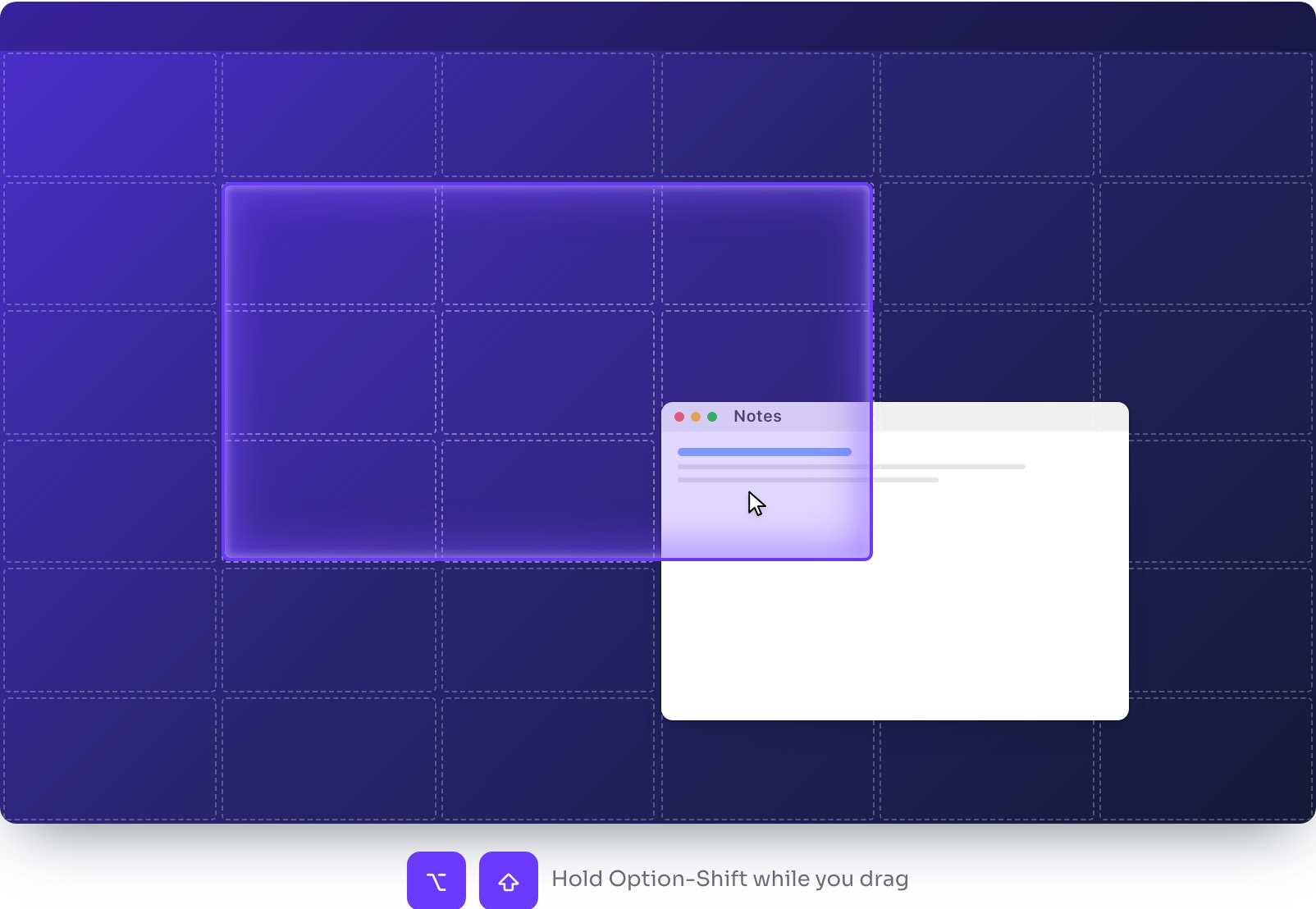
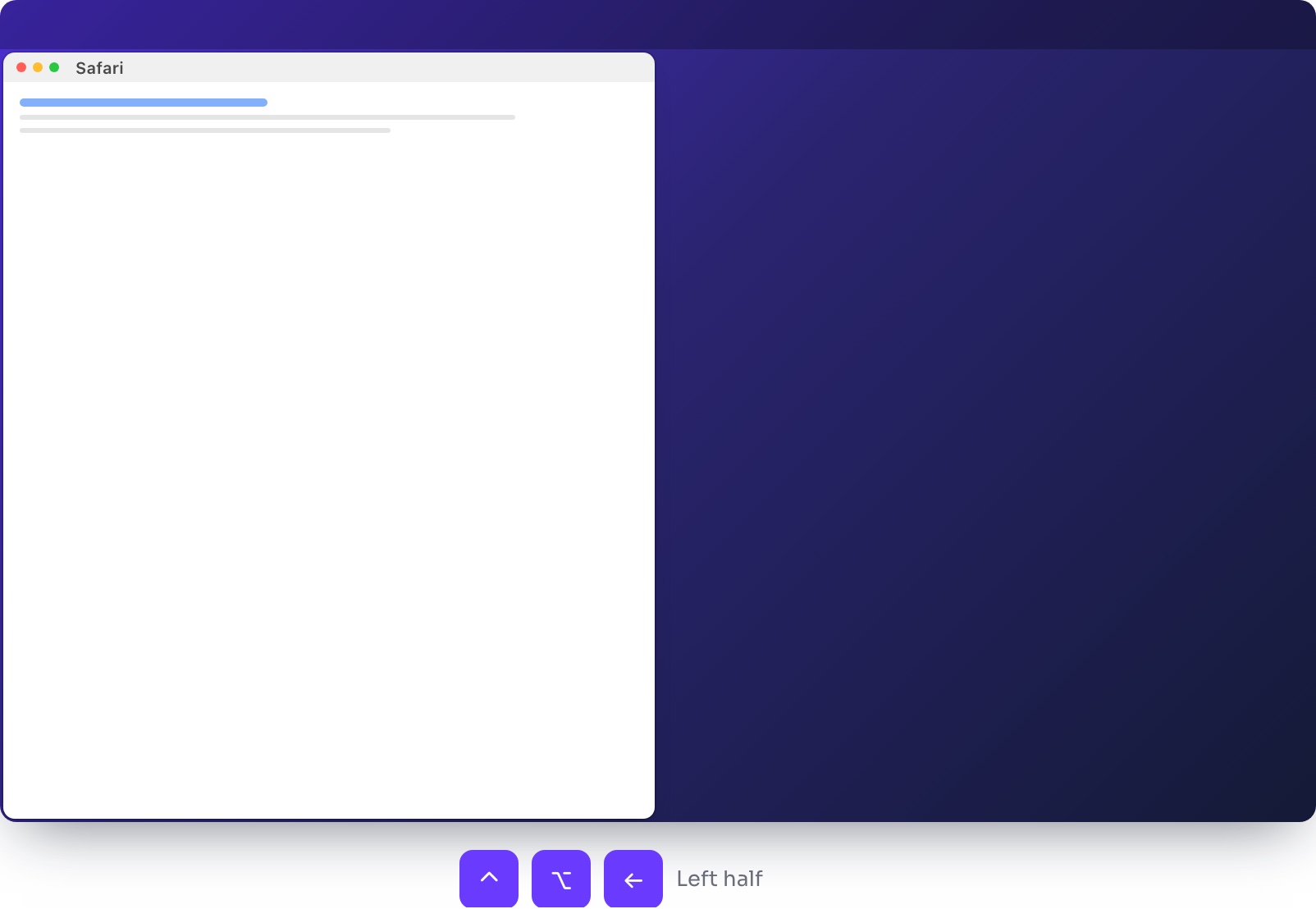
Hold Shift as you drag a window and it snaps to a screen edge or to the edge of the window under it. Two snapped windows share a gap you can drag to resize both. Hold Option instead and your grid appears, and the window takes the cell under the pointer. Option-Shift shows a finer six by six grid.
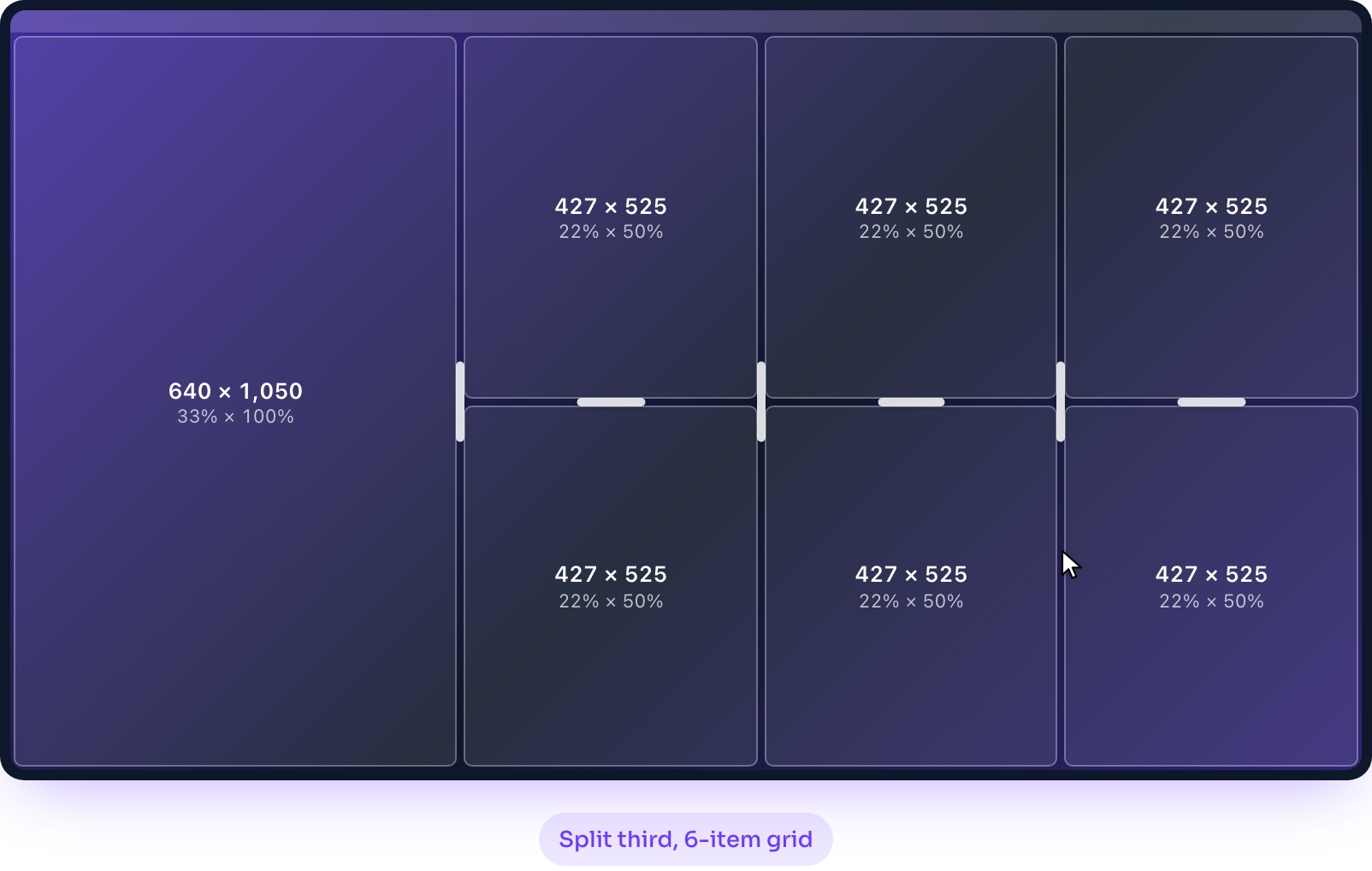
You draw grids in Settings › Layout by dragging dividers or Option-clicking a cell to split it. Seam names each grid from its shape, so a third on the left with six cells beside it is “Split third, 6-item grid.”
Snap, grid, editor, keys
A plain drag still moves a window as usual. The modifier keys decide when Seam steps in.
One click puts every window back
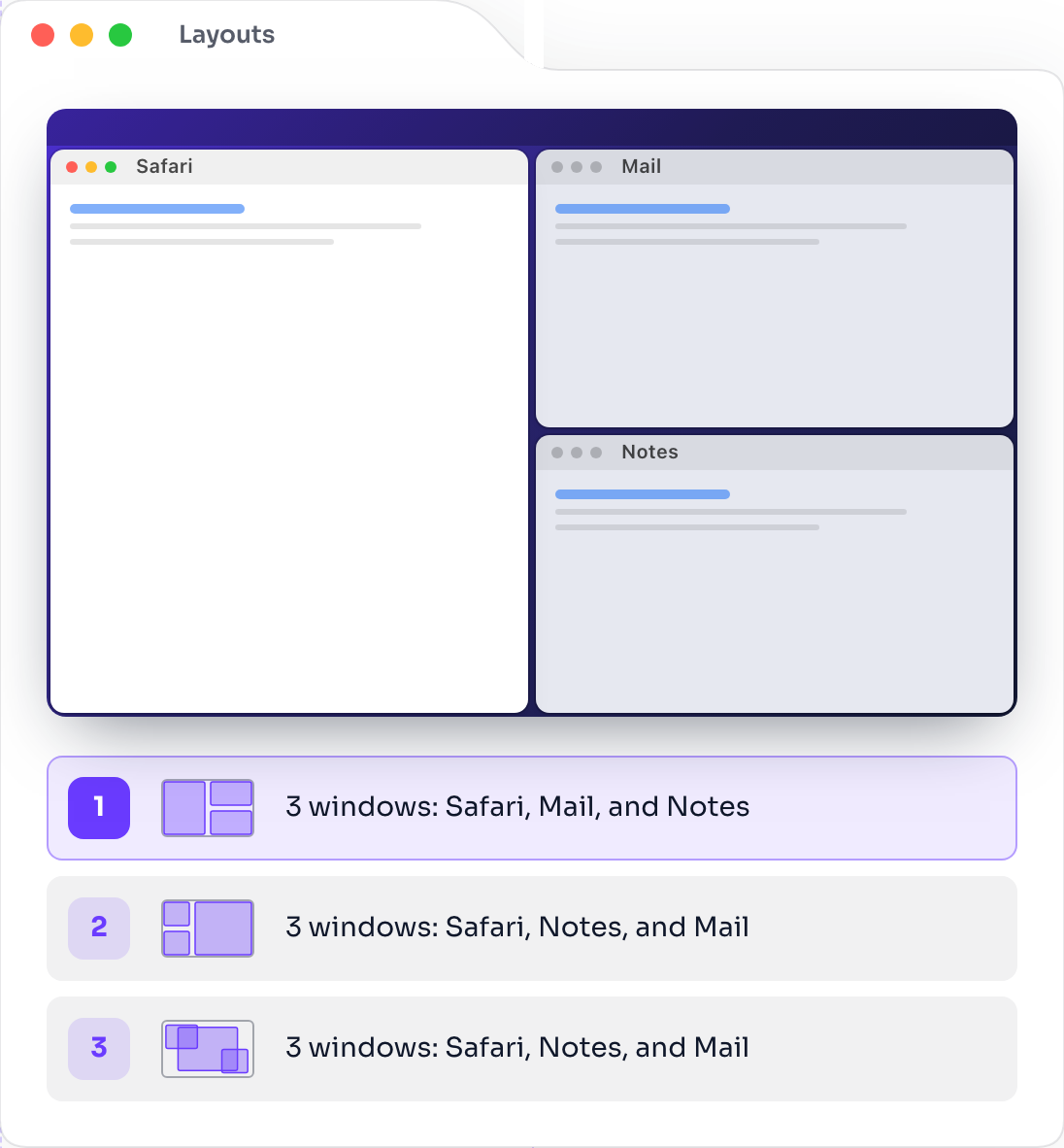
Seam keeps six layouts. Each one records every window on screen: its app, its place and which window is in front. Click a number and every window goes back. Seam finds each window again even after its app restarts.
You can restore a layout from the drop-down, with Control-Option and a number, from the
Shortcuts app, or from a seam:// link in your notes or launcher.
Built to sit beside Finder all day
- Finder stays in charge
- During a drag, Finder stays the active app while Seam’s drop-down takes the drop. A held drag over a folder row opens the folders inside it, the way Finder springs a folder open.
- Every move can be undone
- History lists every move Seam makes, and Undo puts the files back. If a move would replace a file, the old one goes to the Trash.
- More ways to sort
- Seam also sorts from Finder’s right-click menu, from the Shortcuts app, and with Sort Desktop, which lists the files on the Desktop with a proposed folder for each, so you can check them and file them together.
- Keyboard first if you want it
- A shortcut opens the drop-down with keyboard focus. Arrow keys and Return pick a folder, typing filters the list, and Escape closes it.
- Follows the Mac’s settings
- The drop-down and every window follow light or dark appearance, Reduce Motion and Reduce Transparency. Every animation has a calmer version for Reduce Motion.
- Reads as little as it can
- Seam moves files without opening them, and reads only each window’s position, size, app and stacking order.
On sale at seamformac.com
Seam 1.1.1 runs on macOS 14 Sonoma or later and is sold in the United States for now. The website’s hero has a working copy of the drop-down you can click through.
Explore